Objo Studio v26.8.1 Released

I’m happy to announce the immediate availability of the latest and greatest version of Objo Studio, version 26.8.1 :tada:

Download
Full changelog

As always, all reported bug have been fixed (27).

This release brings 14 new features but the big one is unit testing.

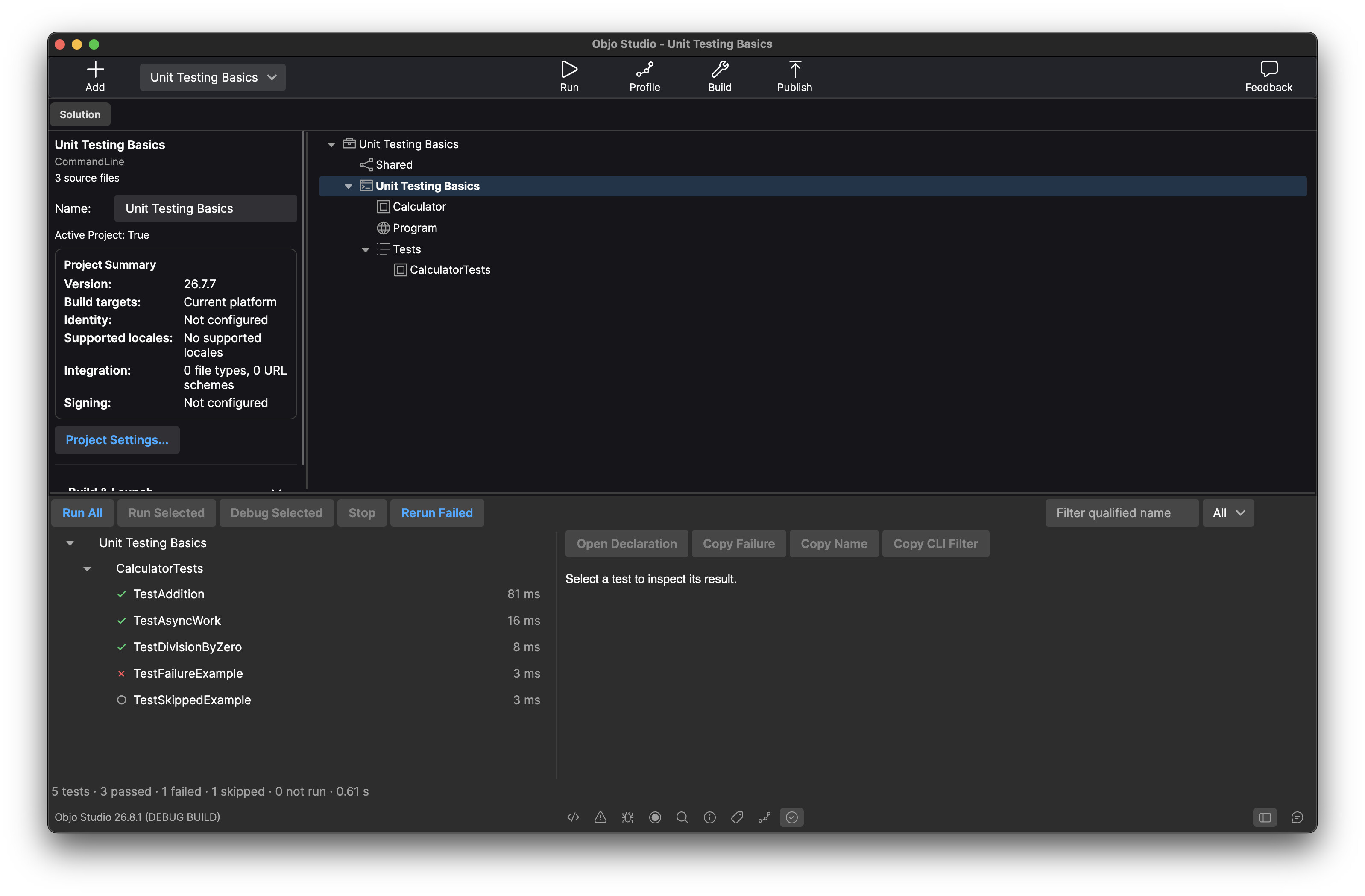
Unit testing within Objo Studio
What is a unit test?

A unit test is a small, focused check that exercises one piece of your code in isolation and asserts the result you expect. Instead of launching your whole app and clicking around to see whether something works, you write a test that runs a method a hundred times over with known inputs and tells you the moment a change breaks it. Tests turn “I hope I didn’t break that” into “I know I didn’t”. Tests catch regressions in a feature you touched months ago, the instant they appear.

Writing tests in Objo

Objo has a built-in unit-testing workflow shared by Studio and the objo command-line tool. There is no separate framework to install, no configuration to wire up. A test is just an ordinary class that inherits TestCase, with public parameterless methods named after Test:

Class OrderTests Inherits TestCase
  Public Sub TestEmptyOrderTotal()
    Assert.Equal(0, New Order().Total)
  End Sub

  Public Async Sub TestAsyncRefresh()
    Var ignored As Object = Await Task.Delay(10)
    Assert.True(True)
  End Sub
End Class

The shared Assert module gives you the usual testing toolbox (Equal, True, AlmostEqual, Contains, Throws) and reports failures with the expected and actual values, a compact difference, and the exact source location. SetUp and TearDown prepare and clean up a fresh instance before and after every test, so tests stay independent. Tests run synchronously or Async, each in a fresh VM.

Running tests is one click operation

Studio makes finding and running tests effortless. Choose Tests > Add Unit Test… to create your first test class; a Tests node appears under the project and a Tests panel groups everything by project, class, and method. From there you can run all tests, run a selection, debug a selection, stop a run, or rerun only the failures. Desktop tests can even run headlessly: they can construct designed windows, set control state, and exercise bindings without ever showing a real window.

Let the AI assistant write them

With an AI assistant configured (Settings > AI Assistant), you can generate tests just by asking, for example “create tests for Cart.ApplyDiscount.” Studio sends the assistant a focused view of the selected API and your existing conventions and validates the proposal on an isolated copy without executing anything.

Summary

I hope you enjoy this new release. Adding easy unit testing to Objo Studio really levels it up. This is a professional grade system that is free to use for everyone. I hope you find it helpful.

Build for any desktop target from a single codebase: Windows x64 and ARM, macOS Apple Silicon and Intel, Linux x64 and Linux ARM. Develop on any OS and target any OS.

I don’t see the Mac Intel download?

I no longer support Objo Studio for Apple Intel. Studio can still build apps for Apple Intel but only runs on Apple Silicon Macs.

Wow Garry, another great release!

Garry, can you tell me if I do this correctly? I want to give the background of window dlg_Main a yellow background.

  1. I place a canvas over the whole window area.
  2. I lock the left, top, right and bottom sides so the canvas grow/shrink when I resize the canvas.
  3. I add a “Paint” event handler to the canvas.
  4. Inside the Paint event handler I place the following code:
    G.DrawingColour = colour.RGB(255, 255, 0)
    g.FillRectangle(0, 0, Me.Width, Me.Height)
    This gives me the results I wanted, a yellow background covering the whole window which resize with it.

Is this correct or is there a better way?

Thank you in advance.

Kind regards,

Chris

Use the paint event of the window?

Then you need to rework that statement.

Thank you Markus for your suggestion.

However, in Objo, there is no paint event on a Window. My solution is using a canvas which is resizing with the window. In its paint event I set the DrawingColour and then draw a rectangle with the dimensions of the canvas.

It works perfectly but I want to know if I missed something because I expected a background property to set the colour directly on the window.

For your information, this is the code for the Paint event handler of the Canvas:

g.DrawingColour = Colour.Purple
g.FillRectangle(0, 0, Me.Width, Me.Height)

Make sure the canvas start in the top-left corner and ends in the bottom right corner. Don’t forget to lock it at all sides so it resize with the window.

On setback with this method is that you have flickering at the side you make the window bigger. When making it smaller, the flickering is less.

I also tried to add a Resize event handler to the Window and add the following code in it:

cnv_BG.Left = 0
cnv_BG.Top = 0
cnv_BG.Width = Me.Width
cnv_BG.Height = Me.Height
cnv_BG.Refresh()

The difference is very small. Still flickering.

Thanks, Bad Wolf, you were right. I’ve now added a BackgroundColour property to Window.

It’s available both programmatically and in the visual designer’s Inspector. By default, HasBackgroundColour is False, so the window continues to use the current light or dark theme background.

Choosing a custom colour in the designer, or assigning BackgroundColour in code, automatically sets HasBackgroundColour to True. The custom colour then remains in place when the system switches between light and dark mode.

To return to the theme background, uncheck HasBackgroundColour in the Inspector or do this in code:

window.HasBackgroundColour = False

The selected custom colour is retained, so it can be restored later by setting HasBackgroundColour back to True.

This will be included in the next release: Feature #1098 - Objo

Thank you Garry for your swift response which is very much appreciated.

Kind regards,

Chris

Wouldn’t it be better to set two custom colours, one for Light mode, one for Dark mode. Both can be identical but don’t have to.

Not a bad suggestion. I shall ruminate on that…