The latest version of Objo Studio is out now!
As is the Objo way, we’ve fixed all reported bugs (38).
Before we get onto all the lovely new features, I would like to also announce that ObjoBasic has been renamed to Objo. Objo Studio is the IDE, Objo is the language. It’s a punchier name and we are early enough in Objo’s life that now is the time to rename if we were ever going to.
In addition I’m pleased to say we added twenty new features, the full details of which you can find in the changelog. However, as is tradition, I’d like to call out a few of my favourites for this release.
Comprehensive printing / printer support
It’s now possible to print from your desktop apps. We’ve added a cross-platform printing and PDF pipeline. You can discover available printers with Printers.Names() or create a PrinterSetup initialised with the available platform defaults using Printers.DefaultSetup. Configure its paper size, orientation, margins, and page range, then use it to create a PrintJob.
Set the job’s PageCount, handle its RenderPage event, and draw text, shapes, and images onto each page’s Graphics surface. The event fires once for each page in the selected range, leaving your app in control of pagination. Call Job.Run() to submit the job without showing a print dialog, Job.ShowPrintDialog() to let the user choose their settings, or Job.SavePDF(path) to save the same output as a PDF.
Under the hood, pages are rendered through Avalonia and SkiaSharp before being handed to the platform print system. Printing is supported on macOS, Windows, and Linux. To help you get started, we’ve included a bundled example called Printing Demo, available from Studio’s Solution Chooser.
ODBC database support
Objo apps can now connect to databases and other data sources through ODBC. The new ODBCDatabase class accepts both DSN and DSN-less connection strings and implements the standard Database interface, so you can use the familiar RecordSet, prepared statement, transaction, and table metadata APIs.
This opens the door to Microsoft Access databases on Windows, along with legacy and vendor-specific systems that provide an ODBC driver. Objo automatically includes ODBC support when your app references ODBCDatabase; you just need a compatible ODBC driver and driver manager installed on the target computer.
Var db As New ODBCDatabase("DSN=LegacyData")
db.Connect()

Var rows As RecordSet = db.SelectSQL("SELECT id, name FROM customers")
While rows.MoveToNextRow()
  Print(rows.Column("name").StringValue)
Wend
Configurable window toolbars
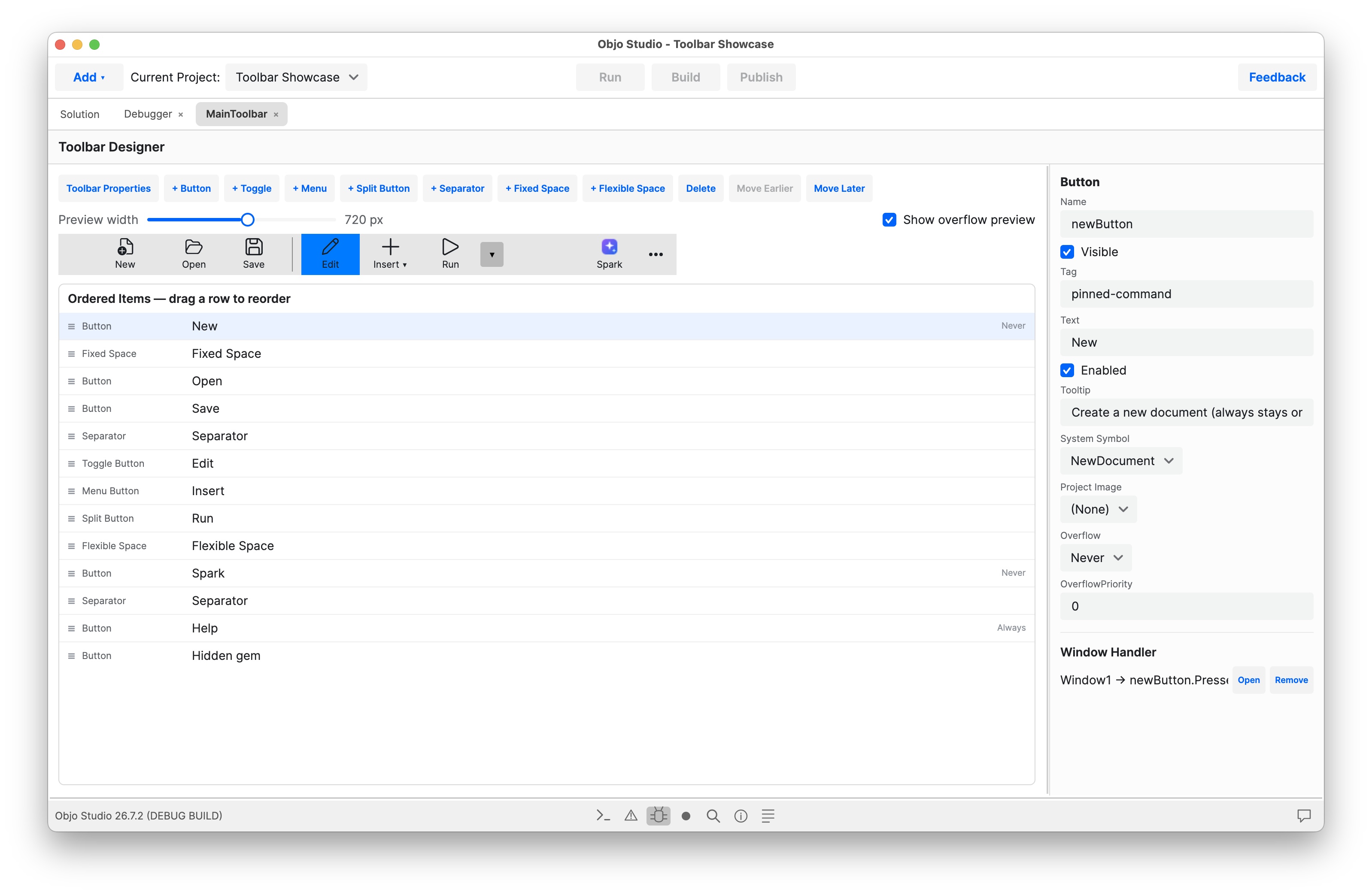
Desktop windows can now have fully configurable toolbars. Objo Studio now includes a dedicated Toolbar Editor where you can add and arrange buttons, toggle buttons, menu buttons, split buttons, separators, and fixed or flexible spaces. Toolbar items can use built-in system symbols or your own project images, including HiDPI variants.
Toolbars respond automatically as a window is resized, moving lower-priority commands into an overflow menu when space runs short. You can control label placement, visibility, overflow behaviour, tooltips, enabled state, and toggle state from the Inspector. Double-click an actionable item to generate its window event handler, just as you would for a control in the Window Designer.
Toolbars remain fully configurable at runtime, too: items can be added, removed, reordered, enabled, hidden, or updated while the window is open. Take a look at the bundled Toolbar Showcase example to see the new toolbar components in action.
More expressive Select Case statements
Select Case has become considerably more expressive. Cases can now match inclusive ranges using To, and ranges can be combined with individual values or other ranges in the same clause:
Select Case responseCode
Case 200 To 299
  Print("Success")
Case 301, 302, 307, 308
  Print("Redirect")
Case 400 To 499
  Print("Client error")
Else
  Print("Unexpected response")
End Select
You can also use Case IsA to branch according to an object’s runtime type. This makes it much cleaner to handle related objects without building a long chain of If...ElseIf checks:
Select Case control
Case IsA TextField
  TextField(control).Text = ""
Case IsA Button
  Button(control).Enabled = False
Else
  Print("Unknown control")
End Select
The selector is evaluated only once, cases are checked in order, and the first matching case wins. Together with exact-value and Case Is comparison matching, Select Case can now handle a much wider range of branching tasks cleanly.
We hope you like this release. As always it is available from the downloads page.