This here seems to be the Syntax:
Control TextField textfield(FieldType.Number)
     Frame = (523, 475, 491, 20)
     Text = "20.0"
End Control
I still was allowed to enter text though but I know this is the syntax since if I use it on other control that does not take this parameter then it emits error.
    Control TextField x_Password(FieldType.Password)
        Frame = (20, 80, 360, 24)
        Placeholder = "Enter your password"
    end Control
just try the code on top and it work…
Thank you both. I’ll give it a shot when I wake up. I haven’t slept all night (not because of the TextField! Just another wonderful migraine.)
I wonder if we can have a editable combobox in the control block, currently have to use
    Dim x_City As ComboBox = New ComboBox(True)
    x_City.Move(20, 108, 320, 26)
and would like to use
    Control cboCity x_cboCity
        Frame = (20, 108, 320, 26)
    end Control
Not a question but more of a comment…
Window myWindow
  Control button myButton
    Handle Action()
      // code referring to other controls on the layout...
    End Handle
  End Control
End Window
I personally think that the layout very fast gets unreadable and hard to realize if mixing code there.
The sub-classing the window is not all bad (at least keeps the layout clean). But maybe instead of subclassing it can be partial class of the Window ?
You don’t have to do it this way. You can still subclass if you want. This is just syntax sugar to do that for the users that want to do it this way.
One good thing that came from this is that it revealed a bug in how Events are propagated down through subclasses and instances.
That’s something 
I am on bit of a hold since I am just stuck on deploying complex example projects that need external files because of the running at weird temp location. The build steps are not reliable since they don’t run in if user just hits run from the toolbar. Also just don’t know what to do with the Buoy pack files when I got loads of example projects with same one once I put it in directory.
The issue I am battling is that most of the users don’t know Buoy and are comming to look so there is high risk that they just give up if hitting run does not work for them.
I have not had time to test last one or two awesome releases yet though !
Please file a bug report if you haven’t already. That’s supposed to work.
Yeah, that’s gotta get fixed. I’m looking into some possibilities, including ways to make them file specific for cases where there’s more than one file with the main() method defined.
Yea I don’t fully know what will is best solution is why I have not really been suggesting much either. If looking at other languages then folder per example project would be perfectly normal. But on the other hand they would often just auto download the packages on first run. So is different case.
I will re-test the build steps before I send bug report since I am one or two versions behind.
One idea maybe would be ability to set Package search path in project settings. Then one could just set the package search path to ../packages
As in one level up, then folders are no longer a problem.
@Stretch327
I am on windows and using VS Code portable (.zip). The folder of VS Code is in path and I can start the editor from anywhere in cmd by typing code but still when I install Buoy it gives error and aborts installing the extension in VS Code.
Following the instructions in install.md file I added the extension manually.
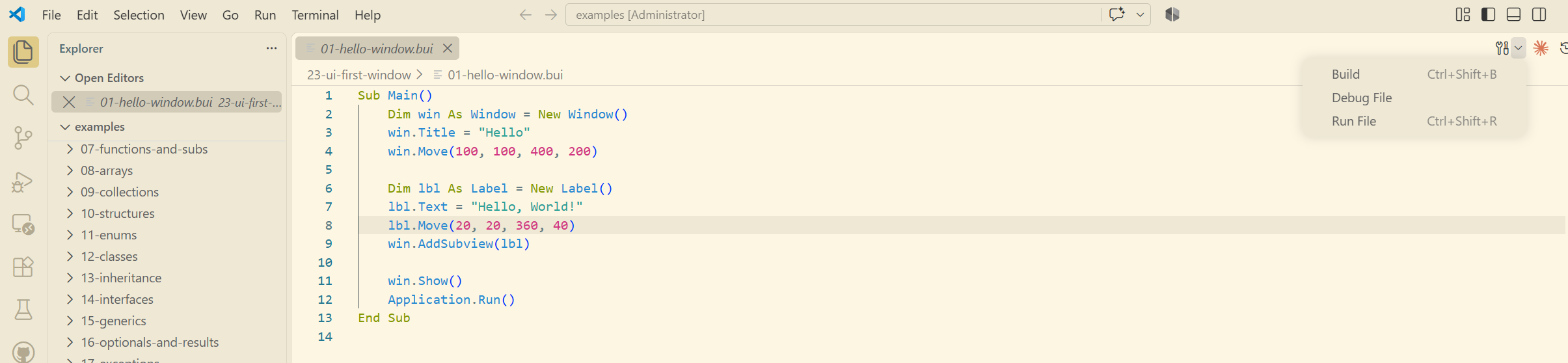
After this I restarted VS Code and then opened a file 23-ui-first-window\01-hello-window.bui but nothing happens. I mean the extension should get activated. I cannot see any tools specific to Buoy.
What must be the issue and how to resolve it.
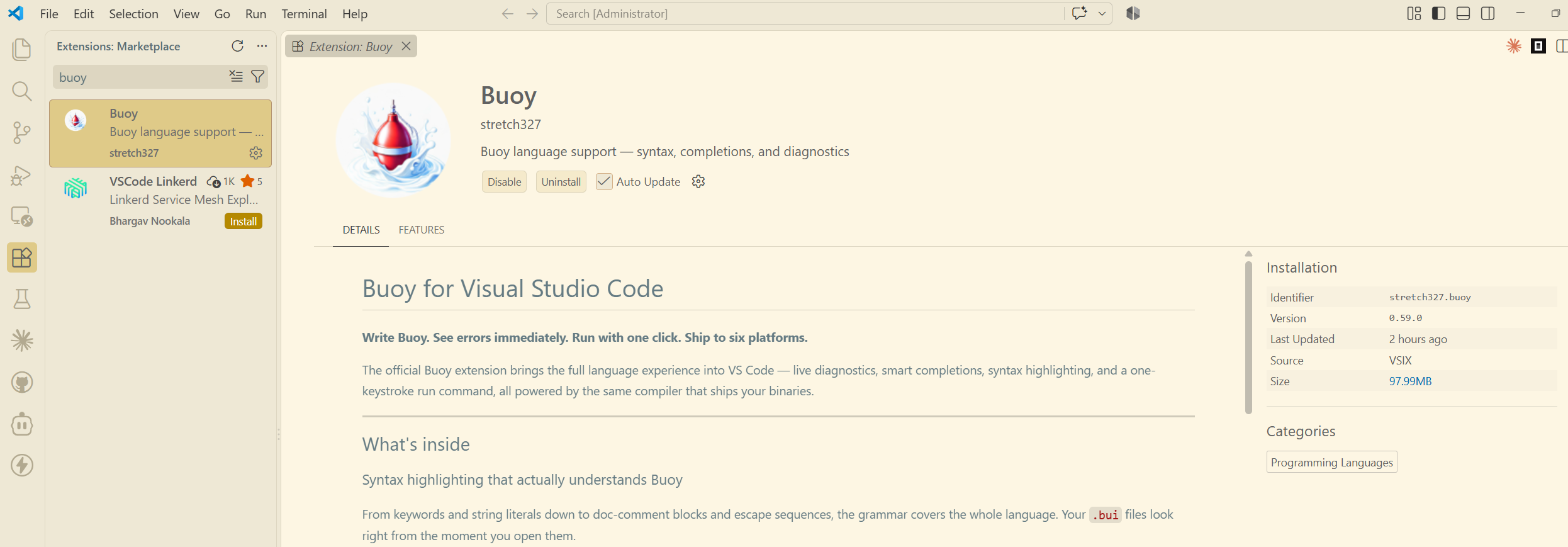
First, let’s make sure that the Buoy extension loaded. In VSCode, please click the extensions icon on the left side of the window and then make sure the Buoy extension is there and when you click it, it is enabled.
In terms of “tools specific to Buoy,” documentation of this is a little lax at the moment.
Just by opening a .bui file, you should get some autocomplete features. Project settings and the build graph are available as soon as you have a file that contains a sub or function named “main”. Settings are available by clicking the gear icon on the right side of the bottom toolbar, but it’ll only be there if the extension loaded.
The two hotkeys you’ll use most are:
- CTRL-SHIFT-B to build
- CTRL-SHIFT-R to run
If any of this is not working for you, please file a bug report on the releases site and we’ll take a look.
Here are a few screen shots:

After opening any file with .bui extension show this…
But Build or Run or Debug does not perform any activity.
There should be output in either the output or terminal tabs at the bottom.
I found two items quickly in my tests:
- Make sure that your workspace is trusted or Buoy files will be read as plain text.
- Copy the example file to a new directory. There’s a bug that causes it to try to make the build folder next to the file and since it doesn’t have permission to do so, it fails.
GroupBox does not look or feel like a Groupbox on macOS.
Is this a temp thing ? will a native one come ?
There will be. I needed to get Windows dark mode out of the way first for some logistical reasons, but we will go back to native group boxes soon.
Something that I added recently that seems to have been overlooked… I added a contextual “Insert Code…” menu entry that helps you enter correct syntax for some common items:
- Window declarative blocks
- View declarative blocks
- Constants
- Localization Strings
- Enums
- Properties
- Interfaces
- Structures
- Declares
- Inherited Events
- Overrides for Inherited Methods